How to run AI coding agents on your own computer

Posted by
Latest Posts
A few months ago I wrote about how I build with Devin. That is still the route I recommend for most founders. It runs in the cloud, it manages the machine for you, and you can still monitor and guide from your phone.
This post is the other route. If you want to get a bit more technical, you can run the whole workflow on your own laptop. Your code lives on your computer, the agents run on your computer, and you decide which models to use and how hard they work. There is some setup involved, so here is how I have mine wired up on both my MacBook and my Linux machine.
1. Install GitHub Desktop
Your code lives in GitHub. Working locally means pulling a copy of the code down to your computer, making changes, and pushing those changes back up so everything stays in sync.
GitHub Desktop is the easiest way to do that. It is a free app from GitHub that gives you a visual interface of code changes. You clone a repo with one click, see exactly which files changed, and push or pull without touching a terminal.
2. Install Orca
Next you need somewhere to run your agents. I use Orca.
Orca is a free, open source desktop app (MIT licensed, code on GitHub) built for running AI coding agents. Think of it as an IDE designed around agents rather than around you typing code. Each task gets its own workspace, its own agent terminal, and its own browser tab, all in one window.
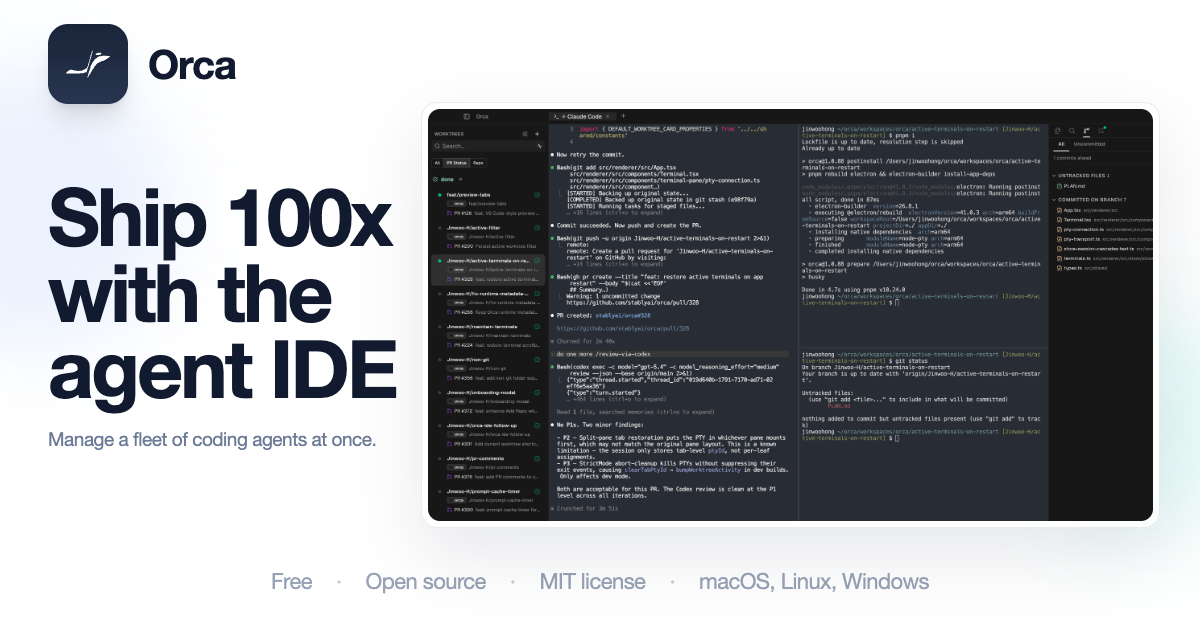
Two things worth knowing up front:
- Orca is not a AI model and it does not replace GitHub. It is the environment your agents work in. You bring your own agent, such as Claude Code or Codex, and Orca manages the process.
- It runs on macOS, Windows, and Linux. You can grab it from the install page, and on a Mac
On first launch Orca asks for access to your home directory so it can find your repos, and offers to import your existing Claude Code and Codex settings if you already have them. Point it at the folder you cloned with GitHub Desktop and you are ready.
3. Pick your agent
This is where the local route pays off. You choose the agent, the model, and how much effort it spends on each task.
I use Claude Code on my machines. Codex from OpenAI is the other strong option. Both run inside Orca, along with Cursor CLI, OpenCode, and most other terminal-based agents. You can even run a Claude session and a Codex session on the same project at the same time and compare the results.
The upside for a founder:
- You decide which model runs each task. Cheaper, faster models for small fixes. The heavy models for the hard problems.
- You control effort levels, so you are not paying maximum reasoning for a copy change.
- You pay your Claude or OpenAI subscription and nothing else. Orca is free, GitHub Desktop is free.
4. Run several sessions at once with worktrees
Here is the part that changed how I work.
Normally when you clone a repo you have one copy of the code, so you can only work on one thing at a time. Orca uses a Git feature called worktrees to fix that. Every task you start gets its own copy of the code on its own branch, in its own folder. Two agents can work on two different features or PRs without stepping on each other.
You do not have to manage any of that yourself. You describe a task, Orca spins up the worktree, opens the agent in it, and shows it in your sidebar with a status: working, done, or waiting on you. When the work is merged, the worktree goes away.
5. Manage it from your phone
Orca has a mobile companion app for iOS and Android (the mobile docs have the current download links). You pair it once with your desktop and it becomes a remote control for every agent running on that machine.
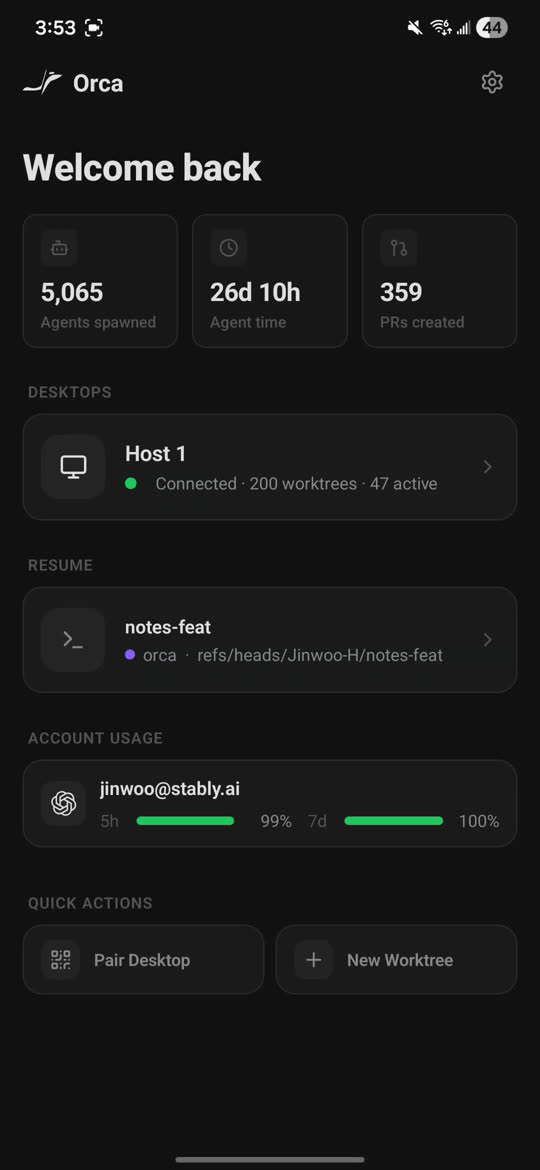
From my phone I can:
- See every worktree across both my MacBook and my Linux machine in one list, with its status.
- Read what an agent did or asked.
- Reply when it is waiting on input, including by dictating.
- Start a new task from a GitHub issue.
- Get a push notification when an agent finishes.
6. Review and merge
Nothing goes live without a human looking at it. This applies whether you use Devin, Orca, or anything else.
You have three places to do the review, and I use all three depending on where I am:
- Inside Orca. There is a built-in diff viewer where you can read every changed line, leave comments for the agent, and commit, push, and open a pull request without leaving the app.
- In GitHub Desktop. Open it and you will see the same branches and changes the agents made. Good for a quick visual check of what moved.
- On GitHub.com. Open the pull request, review, and merge. This is also where your automated tests and CI run, so it is the natural final gate.
Here is my workflow
- Open Orca, describe two or three tasks, one per worktree.
- Check in from my phone as notifications come in. Answer questions, nudge an agent, start the next task.
- Back at my desk, test, review changes in Orca, open pull requests, and merge.
Which route should you pick?
If you want the least setup and the least to think about, stick with Devin. It is the managed option and it is excellent.
If you want more control over models and cost, and you are comfortable installing a couple of apps, the local route above is how I run it every day. You can also do both. I still use Devin for some work and Orca for the rest.
If you set this up and hit a snag, reply and tell me where you got stuck. I would like to hear what your setup looks like.
AI-First App Founders
Don't miss a post
Practical notes on building AI-first apps from the Inovo team.